

Managing unwanted emails can be challenging, but understanding how to block emails on Yahoo can help you maintain a clutter-free inbox. Whether you are dealing with spam, phishing emails, or persistent senders, Yahoo provides several options to block or filter emails effectively. This guide will walk you through various methods to block emails on Yahoo and ensure a better email experience.
Why Should You Block Emails on Yahoo?
Blocking emails on Yahoo is essential for various reasons, including:
- Reducing Spam: Avoid unwanted marketing and promotional emails.
- Preventing Phishing Attacks: Block fraudulent emails attempting to steal personal information.
- Avoiding Unwanted Contacts: Prevent messages from individuals or organizations you no longer wish to engage with.
- Maintaining a Clutter-Free Inbox: Improve email management by filtering out irrelevant emails.
How to Block Emails on Yahoo
Yahoo offers multiple ways to block emails, ranging from direct blocking to setting up filters. Below are the different methods:
Method 1: Using Yahoo Mail Settings to Block Senders
This is the easiest way to block unwanted emails from a specific sender.
- Sign in to Your Yahoo Mail Account
- Open Yahoo Mail and enter your login credentials.
- Open an Unwanted Email
- Navigate to your inbox and select an email from the sender you want to block.
- Click on More Options
- Look for the three-dot menu (More options) at the top of the email and click on it.
- Select “Block Sender”
- A confirmation window will appear.
- Click Block to prevent future emails from this sender.
- Confirm the Action
- Choose whether to delete all existing emails from the sender.
- Click OK to finalize the blocking process.
Method 2: Creating Filters to Block Specific Emails
If you want more control over the types of emails you block, filters are a great option.
- Access Yahoo Mail Settings
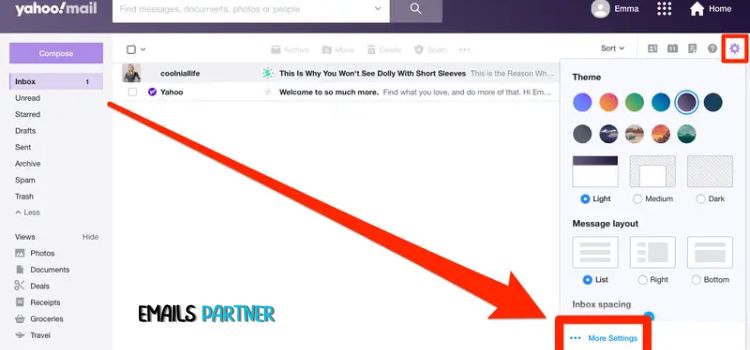
- Click on the Settings icon (gear symbol) in the top-right corner.
- Select More Settings from the dropdown menu.
- Navigate to Filters
- In the left panel, click on Filters and then select Add new filter.
- Create a New Filter
- Give your filter a name (e.g., “Blocked Emails”).
- In the From section, enter the email address or domain you wish to block.
- You can also filter emails based on keywords or subject lines.
- Choose an Action
- Select Move to Trash or Delete to automatically remove unwanted emails.
- Save the Filter
- Click Save to activate the filter.
Method 3: Marking Emails as Spam
Yahoo Mail’s spam filter automatically detects and filters spam emails. However, you can manually mark emails as spam to improve filtering accuracy.
- Select the Unwanted Email
- Click on the Spam Button
- The email will be moved to the Spam folder.
- Yahoo Learns Your Preferences
- Marking multiple emails as spam trains Yahoo’s filtering system to recognize similar emails in the future.
Method 4: Unsubscribing from Unwanted Emails
For marketing and promotional emails, unsubscribing is often the best option.
- Open the Email
- Look for the Unsubscribe Link
- Usually found at the bottom of the email.
- Click and Follow Instructions
- This will remove you from the sender’s mailing list.
Managing Blocked Senders in Yahoo Mail
If you need to review or manage blocked senders, follow these steps:
- Go to Settings
- Click on the gear icon and select More Settings.
- Select Security and Privacy
- Find the Blocked Addresses section.
- Review Blocked Senders
- Here, you can see a list of all blocked email addresses.
- Unblock an Email Address (if needed)
- Click on the Trash icon next to an email address to remove it from the blocked list.
Troubleshooting: Common Issues When Blocking Emails on Yahoo
1. Emails Still Appearing After Blocking
Solution:
- Check if the sender is using multiple email addresses.
- Verify that the block or filter settings are correctly applied.
2. Spam Folder Still Receiving Unwanted Emails
Solution:
- Mark these emails as spam repeatedly to improve Yahoo’s filtering.
- Create stronger filters to delete these messages automatically.
3. Filter Not Working Properly
Solution:
- Ensure that the filter criteria match the exact email address or keywords.
- Filters are case-sensitive; double-check spellings.
Additional Tips for a Secure and Organized Yahoo Mail
- Use Two-Factor Authentication (2FA): Adds an extra layer of security to your account.
- Regularly Clean Your Inbox: Delete old emails and empty the trash.
- Avoid Clicking Suspicious Links: Protect yourself from phishing scams.
- Update Your Yahoo Mail App: Ensure you have the latest security updates.
Final Thoughts
Blocking emails on Yahoo is an essential step toward maintaining a secure and organized inbox. Whether you use Yahoo’s built-in blocking feature, filters, or spam marking, taking proactive steps ensures unwanted messages do not disrupt your email experience. If you still receive unwanted emails, review your settings periodically and adjust filters accordingly.
Summary
Blocking emails on Yahoo can help users manage unwanted messages, reduce spam, and enhance their overall email experience. By following the correct steps—using Yahoo’s block sender feature, setting up filters, marking emails as spam, or unsubscribing—you can keep your inbox clean and secure. If issues arise, troubleshooting methods are available to resolve them efficiently. For additional assistance, reach out to the Emails Partner Team for expert guidance on managing Yahoo Mail effectively.
